PA Portfolio is an AAPA member benefit that can also be purchased separately by nonmembers. It enables users to:
- Securely store professional records.
- Set expiration reminders.
- Share documents with employers, recruiters, hospitals, and others through a secure AAPA-powered system.
- Transfer eligible CME credits completed through AAPA to an NCCPA account.
After a user completes an AAPA CME activity and its corresponding evaluation in Learning Central, the activity automatically populates in PA Portfolio.
Before You Begin
Have the following available:
- Your AAPA account credentials.
- Your NCCPA account credentials.
- Your NCCPA number, which is used as the user ID when PA Portfolio redirects you to the NCCPA sign-in page.
- Completed AAPA CME activities and their corresponding evaluations in Learning Central.
Part 1: Access and Activate PA Portfolio
Step 1: Sign in to your AAPA account
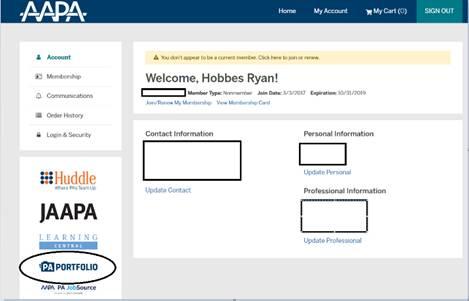
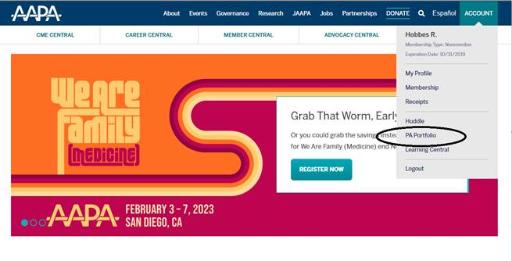
Sign in to your AAPA account and locate PA Portfolio.
Depending on the version of the AAPA account page you see, PA Portfolio may appear near the lower-left side of the account navigation.
PA Portfolio may also be available from the Account menu near the upper-right side of the AAPA website.
Step 2: Start first-time setup
If this is your first time opening PA Portfolio, select Get Started and follow the displayed prompts.
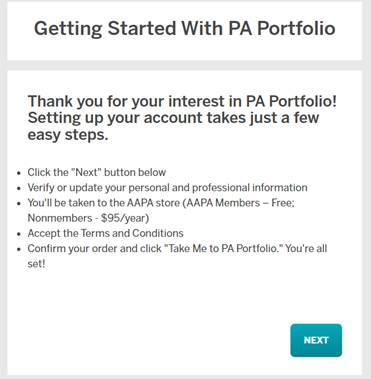
The setup screen instructs the user to:
- Select Next.
- Verify or update personal and professional information.
- Continue to the AAPA Store.
- Accept the terms and conditions.
- Confirm the order and open PA Portfolio.
Step 3: Verify your information
Review and confirm your contact and career information. After selecting Confirm & Continue on the applicable pages, PA Portfolio is added to your cart.
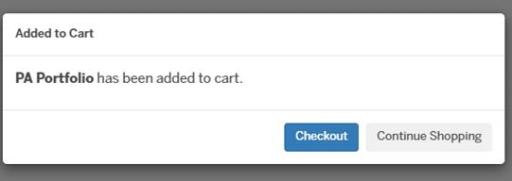
Select Checkout to continue.
Step 4: Proceed to checkout
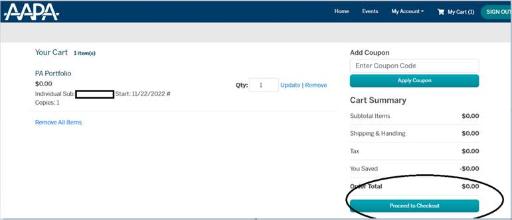
On the cart page, select Proceed to Checkout, then select or confirm your billing address.
Step 5: Place the order
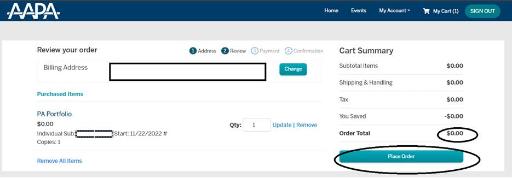
On the Review your order page, review the order and select Place Order.
PA Portfolio is listed at $0 for current AAPA Fellow Members and $200 for nonmembers.
Step 6: Sign out and sign back in
After placing the order, sign out of the AAPA account, sign back in, and reopen PA Portfolio.
Part 2: Link PA Portfolio to NCCPA
Step 7: Open the CME tab
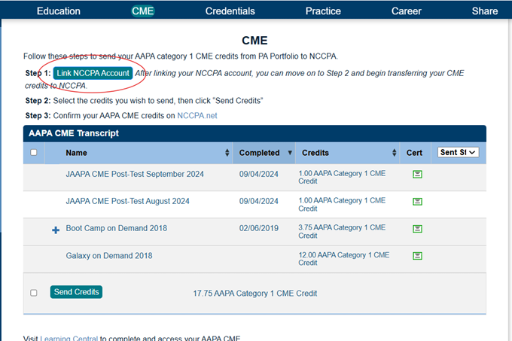
After signing back in and reopening PA Portfolio, select CME from the navigation bar at the top of the PA Portfolio page.

Step 8: Select Link NCCPA Account
If you are linking the accounts for the first time, select the teal Link NCCPA Account button.
Step 9: Authorize the connection
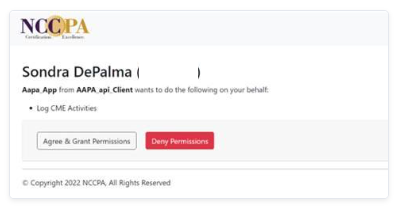
You are redirected to the NCCPA sign-in page.
- Enter your NCCPA credentials.
- Use your NCCPA number as your user ID.
- Select Agree & Grant Permissions.
After authorization, you are automatically redirected to PA Portfolio.
Step 10: Verify that the connection succeeded
After the accounts are linked, an Earning Window appears where the enable-link control previously appeared.

Part 3: Transfer CME Credits to NCCPA
Step 11: Select the CME activities
On the CME page:
- Select the checkbox beside each CME activity you want to transfer; or
- Select the checkbox at the top of the column to select all displayed transfer-eligible activities.
Then select Send Credits.
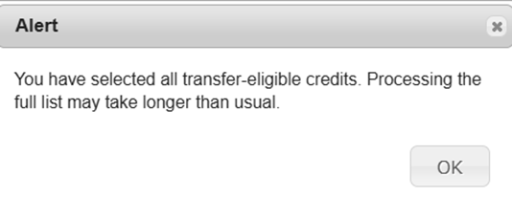
If all transfer-eligible credits are selected, PA Portfolio may display an alert that processing the full list could take longer than usual. Select OK to continue.
Step 12: Confirm the successful transfer
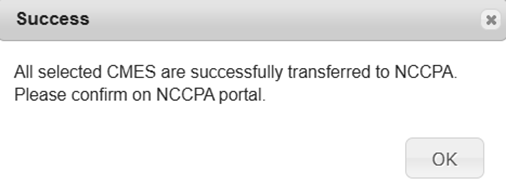
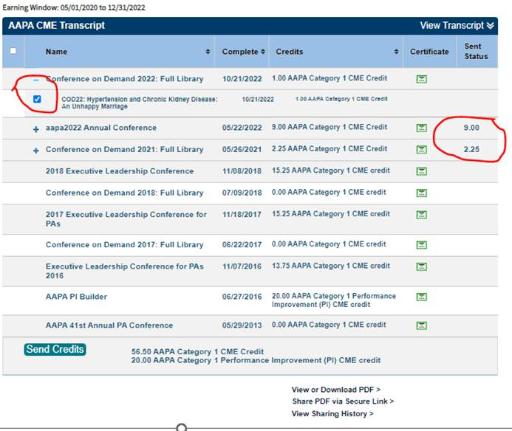
After the credits are sent, PA Portfolio displays a success message. The Sent Status column also updates to reflect the credits transferred to NCCPA.
Review the transcript to confirm that the applicable rows show an updated sent status.
Part 4: Confirm the CME Activities in NCCPA
Step 13: Sign in to NCCPA
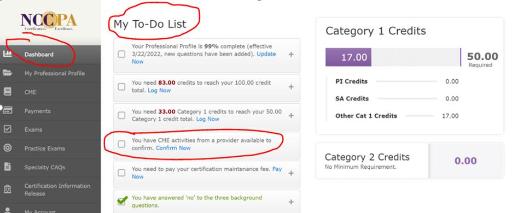
The transfer from PA Portfolio must still be confirmed in NCCPA. Sign in to your NCCPA account and open the Dashboard.
Step 14: Open the NCCPA To-Do List
On the NCCPA Dashboard:
- Locate My To-Do List.
- Find the notice indicating that CME activities are available to confirm.
- Select Confirm Now.
Step 15: Choose how the credits should be applied
If NCCPA permits the activities to be applied to the current or upcoming cycle, you can assign or split the credits across either or both cycles.
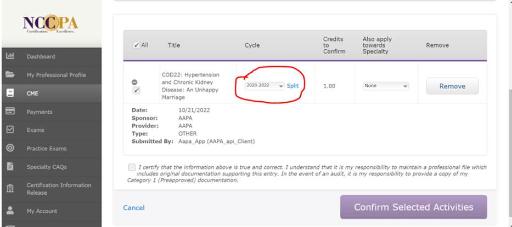
You may apply an activity toward a particular specialty when that option is available.
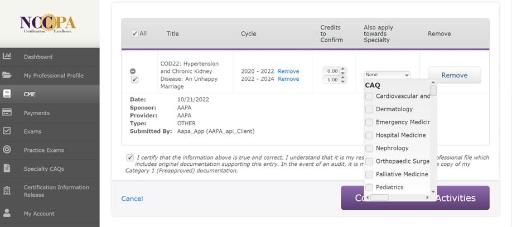
Complete the confirmation in NCCPA using the options displayed for the selected activities.
Completion Checklist
The process is complete when:
- PA Portfolio has been activated through the AAPA checkout process.
- PA Portfolio is linked to the NCCPA account.
- The Earning Window appears in PA Portfolio.
- The selected CME activities show an updated Sent Status.
- The transferred activities have been confirmed through the NCCPA Dashboard and To-Do List.
Important Notes
- AAPA CME activity appears in PA Portfolio after the activity and corresponding evaluation are completed in Learning Central.
- The NCCPA user ID used during account linking is the user’s NCCPA number.
- A PA Portfolio success message confirms the transfer to NCCPA, but the user must still confirm the activities in the NCCPA portal.
- Users who are eligible may be able to split credits between cycles or apply credits toward a specialty.
Additional Help
See the PA Portfolio FAQs for additional information.
Was this article helpful?
That’s Great!
Thank you for your feedback
Sorry! We couldn't be helpful
Thank you for your feedback
Feedback sent
We appreciate your effort and will try to fix the article